

 By
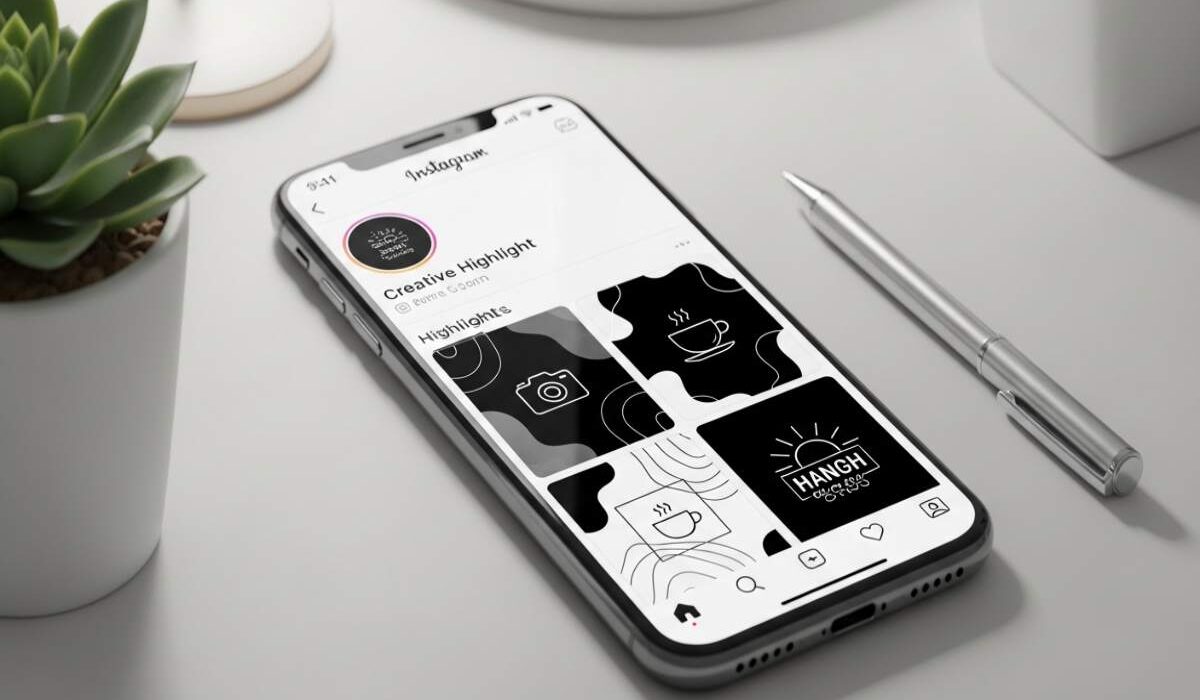
By Your Instagram profile is your digital storefront. In the seconds it takes for a visitor to decide whether to follow you, your Story Highlights play a crucial role. These small circular icons sit prominently beneath your bio, acting as a permanent library of your best content. Among the many design choices available, black highlight covers have emerged as a timeless favorite among creators, brands, and aesthetically conscious users.
Black covers offer a unique combination of minimalist sophistication and visual versatility. Unlike colorful covers that can compete with your content, black creates a neutral backdrop that frames your stories without distracting from them. A uniform row of black circles signals organization, professionalism, and attention to detail. Visitors immediately understand that your profile is curated with care.
Technical Specifications for Perfect Black Covers
Before you begin designing, understanding the technical requirements is essential. Using the wrong dimensions or file format will result in blurry, pixelated, or awkwardly cropped covers that undermine your professional image.
Exact Dimensions and Settings
| Specification | Recommended Value | Why It Matters |
| Canvas Dimensions | 1080 x 1080 pixels | Instagram’s optimal upload size; prevents pixelation on all devices |
| Resolution | 72 PPI (Pixels Per Inch) | Standard for digital screens; keeps file sizes manageable |
| Color Mode | RGB | Digital color spectrum ensures accurate black rendering |
| Background Color | 000000 (Pure Black) | Consistent across all devices; no color variation |
| Icon and Text Color | FFFFFF (Pure White) | Maximum contrast for readability |
| File Format | PNG | Preserves sharp edges and transparency |
| File Size | Under 1 MB per cover | Ensures fast loading and successful upload |
Understanding the Circular Crop
Instagram displays highlight covers as circles, but you upload a square image. This means you must design with the crop in mind.
The safe zone is the central area of your square that will remain visible after Instagram applies its circular mask. Keep all critical elements, including icons and text, within the central 900 x 900 pixel area. Leave at least 90 pixels of black margin on all sides. Elements placed too close to the edge will be cut off.
In design tools like Canva, search for Instagram Highlight Cover templates. These come pre-sized with visible circular guides that show you exactly where the crop will occur.
Tools and Resources Comparison
Select the tool that matches your skill level and design needs. Here is a comprehensive comparison of popular options.
| Tool | Best For | Key Features for Black Covers | Cost | Learning Curve |
| Canva | Beginners and most users | Free templates, black backgrounds, transparent PNG export, brand kit for custom colors | Freemium (Pro around $12.99 per month) | Very Low |
| Adobe Express | Quick professional results | Premium Adobe Fonts, AI-powered design, one-click palette generation | Freemium (Premium around $9.99 per month) | Low |
| Unfold | Mobile-first creators | Story-specific templates, elegant minimalist designs, cohesive sets | Freemium (Pro around $2.99 per month) | Very Low |
| Over | Typography-focused designs | Extensive font library, advanced text tools, layering | Freemium (Pro around $9.99 per month) | Low |
| Photoshop | Complete creative control | Pixel-perfect design, layer styles, non-destructive editing | Subscription around $22.99 per month | High |
| Figma | Collaborative teams and precise design | Vector-based, reusable components, perfect for maintaining consistency across large sets | Freemium (Professional around $12 per month) | Medium |
Where to Find Icons and Assets
| Source | Best For | Cost |
| Canva Elements | Integrated design workflow | Free with Canla account |
| Flaticon | Vector icons in multiple styles | Free with attribution or paid subscription |
| The Noun Project | Extensive icon library | Free with attribution or paid membership |
| Creative Market | Unique, premium designer assets | Varies by product |
| Etsy | Handcrafted, themed sets for Instagram | Typically $3 to $15 per set |
Design Principles for Black Highlight Covers
Creating effective black highlight covers requires more than technical knowledge. Design principles guide your choices and ensure your covers are both beautiful and functional.
Simplicity Is Key
Highlight covers are small. On most phones, they appear at roughly 80 to 100 pixels in diameter. Intricate details, complex illustrations, and small text become illegible at this size.
Stick to one primary element per cover. A single icon or one to two words is the gold standard. Examples include TRAVEL, FAQ, RECIPES, or a simple heart icon. Avoid ambiguous emojis or overly cute illustrations that may confuse viewers.
Typography Guidelines
If you choose to include text on your black covers, follow these guidelines.
Use clean sans-serif fonts such as Montserrat, Inter, Helvetica Neue, or Futura. These remain readable at small sizes. Script fonts can be used sparingly for one to two words if they align with your brand, but test them at actual size before committing.
Set text in white (FFFFFF) for maximum contrast. For subtle variation, consider very light grey (F0F0F0) or a metallic silver (C0C0C0). Never use colors that blend into the black background.
Limit text to one or two words. TRAVEL works. WEEKEND ADVENTURES is too long. If you need more descriptive text, use an icon instead.
Icon Selection
Icons should be simple, recognizable, and consistent in style across your entire set. Mixing line art icons with solid filled icons creates visual discord.
Line art icons with thin, clean strokes work exceptionally well on black backgrounds. Ensure the stroke weight is thick enough to remain visible at small sizes. A stroke weight of 3 to 5 pixels at 1080 x 1080 resolution is recommended.
Step-by-Step Creation Guide
Method 1: Creating a Minimalist Black Cover in Canva
This method is recommended for beginners and requires no design experience.
1: Set Up Your Canvas
2: Create the Black Background
3: Add Your Icon
4: Size and Position the Icon
5: Change Icon Color
6: Add Optional Text
7: Preview the Circular Crop
8: Export
Method 2: Creating a Text-Only Black Cover
For users who prefer text over icons, this method is ideal.
Follow the same canvas setup with 1080 by 1080 pixels and 000000 background. Click Text and add a heading. Type your category word such as FAQ, SHOP, or PORTFOLIO. Select a bold sans-serif font like Bebas Neue or Oswald. Set font size to approximately 350 to 400 pixels. Center horizontally and vertically. Change text color to FFFFFF. Export as PNG.
Method 3: Creating an Animated Black Cover
Animated covers stand out and signal a premium brand. Use this method only if you have access to Canva Pro or Adobe Express.
Using Canva Pro, design your static cover as described in Method 1. Click Animate and select a subtle effect such as Fade In, Glow, or Slide Up. Avoid rapid or jarring animations. Preview the animation and ensure it is slow and elegant. Download as MP4 video. Upload the video to your Instagram Story first, then add it to a Highlight. The first frame of the video becomes the cover.
Strategic Implementation on Instagram
Creating beautiful covers is only half the work. How you organize and implement them determines their effectiveness.
Determining Your Highlight Categories
Before designing your entire set, decide which categories you need. Review your existing Stories and identify recurring themes. Common categories include:
| Category | Purpose |
| About Me | Introduction to you or your brand |
| Services or Products | What you offer |
| FAQ | Answers to common questions |
| Testimonials | Social proof and client love |
| Behind the Scenes | Authentic, unpolished content |
| Tutorials or Tips | Educational content |
| Press or Features | Media mentions and collaborations |
| Events | Recaps of live or virtual events |
Limit your highlights to five to eight categories. Too few misses an opportunity to organize your content. Too many overwhelms visitors and dilutes your key messages.
Uploading Your Covers
Once your covers are designed and exported as PNG files, follow these steps to upload them.
Open Instagram and go to your profile. Tap and hold an existing highlight or tap the New button to create one. Select the Stories you want to include. Tap Next. On the Edit Cover screen, tap the current cover image. Select Choose from Gallery and select your custom black cover. Pinch to zoom or drag to adjust the positioning. Ensure your icon or text is centered within the circular frame. Tap Done and then Add.
Arranging Your Highlights
Instagram adds highlights in the order you create them. To arrange them intentionally, tap and hold any highlight on your profile. Drag it to your desired position. The most important categories should appear first because these are most visible to visitors.
Troubleshooting Common Issues
Even with careful design, problems can arise. Here are the most common issues and their solutions.
| Problem | Likely Cause | Solution |
| Covers look blurry on Instagram | Exported as JPEG or at low resolution | Re-export from original design file as PNG at 1080 by 1080 pixels |
| Edges of icon or text are cut off | Elements placed too close to canvas edge | Re-center design within 900 by 900 pixel safe zone |
| Black looks grey or inconsistent | Using near-black like 111111 instead of pure black | Use 000000 hex code consistently across all covers |
| White border appears around cover | JPEG with white background or incomplete canvas fill | Use PNG format with fully black-filled background |
| Text is unreadable at small size | Font too thin or too decorative | Choose bold sans-serif font; increase stroke weight |
| Covers appear in wrong order | Highlights added in sequence of creation | Drag and drop on profile to rearrange |
| Animated cover does not loop smoothly | File format or first frame mismatch | Export as MP4 with seamless loop; check first and last frame match |
Advanced Tips and Pro Secrets
Batch Design for Consistency
Design all your covers in one session using a master template. Create one cover with your black background and centered icon. Duplicate it for each category. Modify each duplicate by changing the icon and text while keeping position, size, and color identical. This guarantees perfect consistency across your entire set.
Naming Convention for Organization
Save your exported files with clear, descriptive names. Use a format like BrandName_Category.png. For example, JaneDoe_Travel.png or CoffeeShop_FAQ.png. This prevents confusion when uploading multiple covers.
Seasonal and Thematic Variations
Keep your core black covers consistent, but create special editions for holidays or promotions. For a winter sale, add a subtle white snowflake in the corner. For a product launch, add a small NEW banner in your brand color. Archive these seasonal highlights after the promotion ends to maintain a clean profile.
Accessibility Considerations
White text on a pure black background provides excellent contrast with a ratio of approximately 21 to 1, well above accessibility standards. When uploading covers, add descriptive alternative text. For example, Black Instagram highlight cover with white airplane icon for travel stories.
Frequently Asked Questions
What are the exact dimensions for Instagram highlight covers?
Instagram displays them as circles, but you upload a square image. Use 1080 by 1080 pixels at 72 PPI for optimal results.
Can I use GIFs as highlight covers?
Yes. Create or save a short, looping GIF and upload it to your Story first, then add it to a Highlight. The first frame becomes the cover icon.
Can I use photos as black highlight covers?
Yes. Darken a photo to near-black, overlay a white icon or text, and ensure readability. The result should feel integrated with your other designed covers.
What is the best free tool to make these?
Canva’s free plan is more than sufficient for creating professional black highlight covers.
How many highlight covers should I have?
Between five and eight is the sweet spot. Fewer than three misses an opportunity. More than ten looks cluttered and overwhelming.
Conclusion: Building a Cohesive Instagram Presence
Black Instagram highlight covers are more than a design trend. They are a strategic choice that signals sophistication, organization, and attention to detail. By implementing the techniques in this guide, you create a profile that welcomes visitors, organizes content intuitively, and encourages deeper exploration.
Start small. Choose one category today. Open Canva, create a 1080 by 1080 pixel black canvas, add a simple white icon, export as PNG, and upload it to your profile. Notice how that single intentional choice transforms your highlight section.
