

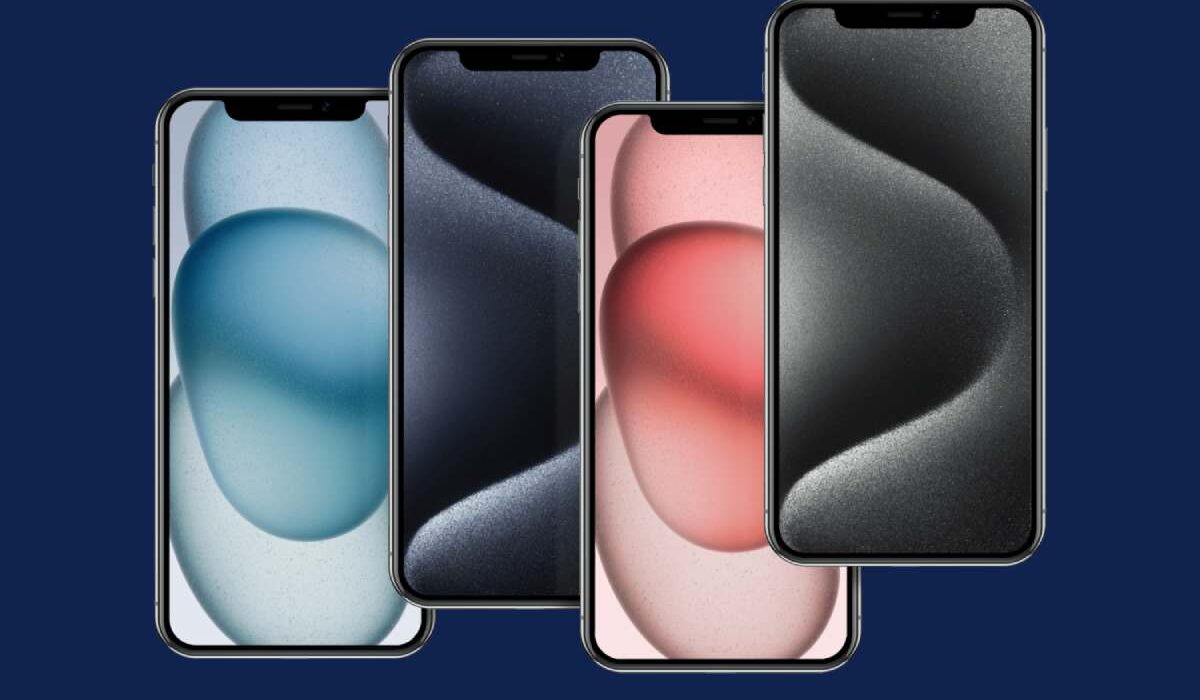
The iPhone 15 Pro Max isn’t just a phone; it’s a canvas. Its stunning 6.7-inch Super Retina XDR display, with its high pixel density and incredible color accuracy, deserves to be showcased. While its native resolution is 2796 x 1290 pixels, starting with a true 4K (3840 x 2160) image is the secret to unlocking its full visual potential. Why? A 4K source image provides a massive buffer of pixels. This allows you to crop, zoom, and position the wallpaper perfectly on your screen without losing any detail or sharpness. It future-proofs your wallpaper for perspective-shifting features and ensures that every hue and gradient is rendered flawlessly on the OLED panel, with deep, true blacks and vibrant, lifelike colors. This guide goes beyond a simple gallery, offering expert tips, setup tutorials, and a curated library to transform your device into a true reflection of your style.
How to Set Up Your Wallpaper Perfectly: A Step-by-Step Guide
Downloading a great wallpaper is only half the battle. Setting it up correctly ensures it looks its best.
1. Saving & Preparing Your 4K Image
- On this page: Long-press on any wallpaper image and select “Download Image” or “Save to Photos.” Ensure you’re saving the full-resolution version.
- From other sources: Always look for a “Download” or “Full Resolution” button. Avoid screenshots of wallpapers, as this compresses the image.
2. Using Depth Effect (iOS 16+)
This clever feature makes the time on your Lock Screen appear behind your wallpaper’s subject, creating a sense of depth.
- Go to Settings > Wallpaper.
- Tap Add New Wallpaper and choose your downloaded 4K image.
- Pinch to adjust the zoom and framing.
- If the system detects a clear subject (like a person, animal, or object against a background), a Depth Effect toggle will appear at the bottom. Turn it on.
- The subject will pop forward, with the clock layered behind it for a stunning 3D look.
3. Setting Separate Lock & Home Screen Wallpapers
You are not limited to one image!
- After choosing or taking a photo in the wallpaper menu, tap Customize.
- You’ll see two tabs at the bottom: Lock Screen and Home Screen.
- Customize each independently—apply filters, adjust blur for the Home Screen, or choose completely different images.
- Tap Done to save the unique pairing.
4. Pairing with Widgets for a Cohesive Look
Think of your wallpaper as the foundation of your home screen design.
- Contrast is Key: If your wallpaper is dark, use light widget backgrounds (or vice versa) to ensure text and icons are readable.
- Color Matching: Use the color palette from your wallpaper to choose widget tints. iOS can suggest matching colors automatically when you customize a widget.
- Leave Space: When framing your wallpaper, consider where your most-used app icons or widgets will sit. Avoid placing critical details in these areas.
Curated 4K Wallpaper Categories for iPhone 15 Pro Max
1. Abstract & Geometric
These wallpapers use clean lines, gradients, and digital art to complement the sleek, modern aesthetic of the iPhone’s titanium frame. They offer a futuristic look that highlights the display’s precision.
- Look for: Fluid gradients, Bauhaus shapes, minimalist patterns, and metallic textures.
2. Nature & Landscapes
From the peaks of mountain ranges to the intricate details of a forest macro shot, these wallpapers are designed to showcase the display’s vibrant color gamut and dynamic range. They bring a sense of calm and grandeur to your device.
- Look for: Ocean waves at sunset, misty forests, desert dunes, and extreme close-ups of plants or water droplets.
3. Minimalist & Dark Mode
Engineered for both style and function. Dark wallpapers leverage the OLED display’s ability to turn off black pixels, directly improving battery life. They also reduce visual clutter, making your app icons and widgets stand out with elegant contrast.
- Look for: Solid dark hues with subtle textures, space themes, and abstract shapes on black backgrounds.
4. Space & Astronomy
A perfect match for the Pro Max display. The infinite blacks of space are rendered perfectly by the OLED screen, while nebulae, planets, and stars pop with incredible color and contrast, creating a truly immersive and awe-inspiring background.
- Look for: NASA imagery, artistic nebula renders, photos of the Moon or Saturn.
5. Featured Artists
This section showcases unique work from digital artists around the world. Using a wallpaper from an independent artist gives your device a distinctive look. We recommend following and supporting the artists whose work you love.
- Look for: Digital paintings, character art, and unique visual concepts you won’t find anywhere else.
Pro Tips & Troubleshooting FAQ
Q: Why does my downloaded wallpaper look blurry or pixelated on my iPhone 15 Pro Max?
A: This is usually due to compression. The image you downloaded was likely not a true high-resolution file. Always download from trusted sources that specify “4K” or “iPhone 15 Pro Max resolution.” Also, ensure you’re not using a screenshot or an image saved from a social media app, as these are heavily compressed.
Q: How can I create my own custom 4K wallpaper?
A: You can use several powerful yet user-friendly apps:
- Canva: Offers templates and design tools. Set your canvas to 3840 x 2160 pixels.
- Adobe Express: Free with powerful editing tools and Adobe’s asset library.
- Vectornator (now Linearity Curve): Excellent for creating sharp, scalable vector-based wallpapers that will never pixelate.
Q: Do Live Wallpapers or “Perspective” zoom drain battery life?
A: They have a minimal impact. Live wallpapers (short video loops) only play when you long-press the Lock Screen. The perspective zoom effect (where the wallpaper moves slightly as you tilt the phone) uses the gyroscope, which is very low-power. The biggest factor for battery life on your wallpaper is using a predominantly bright vs. dark image on the OLED screen.
Q: What’s the best way to back up my wallpaper collection?
A: Don’t rely solely on your iPhone’s Photos library. Use a cloud service like iCloud Photos, Google Photos, or Dropbox with original quality uploads enabled. This ensures you have a full-resolution backup and can access your wallpapers from any device.
Related Resources & Next Steps
Your iPhone 15 Pro Max is a powerful tool for expression. Once you’ve perfected your wallpaper, explore other ways to personalize and protect your device.
- Master the Camera: The wallpapers you capture yourself can be the most meaningful. Learn how to get the most out of the incredible camera system in our dedicated guide: iPhone 15 Pro Max Camera Tips & Tricks.
- Personalize Further: A great wallpaper is just the start. Discover how to tailor every part of your iPhone’s interface in our article: Top iOS 17 Customization Features You Need to Try.
- Protect Your Investment: Show off your new wallpaper with a clear, protective case. We’ve researched the best options that combine style and safety: Best Protective Cases for iPhone 15 Pro Max.
Final Note: This guide is designed to help you get the most out of your iPhone 15 Pro Max display. All wallpaper images are curated from sources that provide high-quality, royalty-free, or appropriately licensed content for personal use. Always respect the artist’s copyright and terms of use.